I wanted to blog about using C# with pkcs11 on SafeNet ProtectServer HSM for your encryption need. The library I intent to use is the Pkcs11 Interop library on GitHub.
To being with we need to understand what an HSM is? In wikipedia we find this definition.
A hardware security module (HSM) is a physical computing device that safeguards and manages digital keys for strong authentication and provides cryptoprocessing. These modules traditionally come in the form of a plug-in card or an external device that attaches directly to a computer or network server.
So how does an HSM really look like? Its just like a Pizza box that you see for other servers like below the Gemalto ProtectServer HSM.
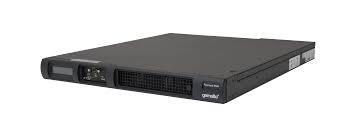
protectserverhsm
Getting Started
In order to use the Gemalto ProtectServer HSM you first need to download the Driver. Unfortunately it is not distributed publicly so you need to have an account to download the driver and software related to it. Trust me I work for Gemalto and had to create a customer account in order to download it.
Assuming that you have the driver and have installed you should have most of your software located at C:\Program Files\SafeNet\Protect Toolkit 5
In our application we will be using a Network HSM, in order to use an Network HSM you need to execute the command of SetMode.cmd
|
|
$SetMode.cmd Select Cryptoki Provider 1. Software Only 2. HSM (local adapter or remote server) 3. None (cryptoki DLL must be in the path) Enter your choice: 2 |
One will have to choose the Network Mode, remember to enter the ip address of the HSM in your registry key. ET_HSM_NETCLIENT_SERVERLIST, needs to have the ip or ip address of the machines you plan to connect.
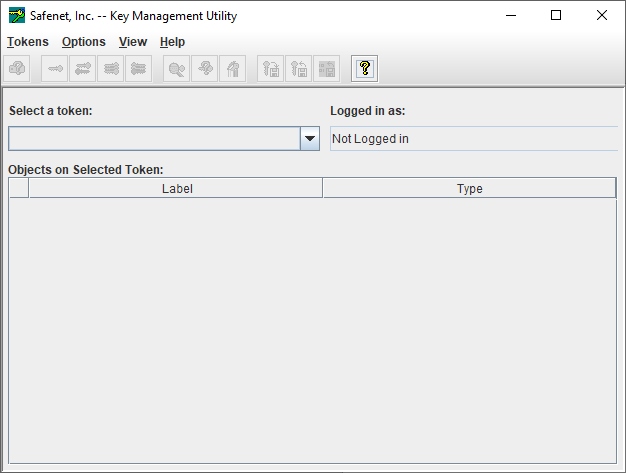
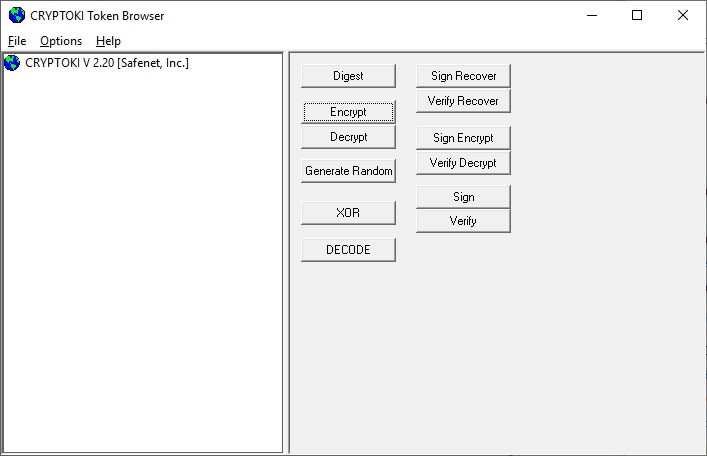
One can then use KMU (a java program) or ctbrowse.exe (a native windows application) to view the HSM.
Tools
Here is the Java Program to use to create keys and manage HSM etc
kmu
Another application that one can use to create keys and manage the HSM.
ctbrowse
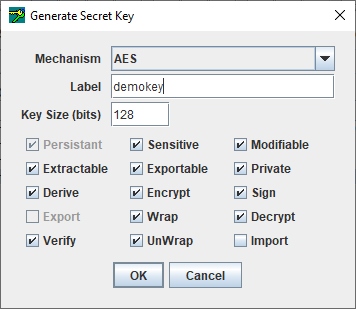
Now lets use the tool to create the key we want, I will use the KMU tool for this and create an AES key labelled as demokey, note there are attributes for the key and I have generated it into a Slot that I plan to use. HSM are divided into Slots that one can use.
generatekey_aes
C# PKCS11 on SafeNet ProtectServer HSM
Now we can finally get into the code we will use the interop library one can install using nuget.
PM> Install-Package Pkcs11Interop
1 2 3 4 5 6 7 8 9 10 11 12 13 14 15 16 17 18 19 20 21 22 23 24 25 26 27 28 29 30 31 32 33 34 35 36 37 38 39 40 41 42 43 44 45 46 47 48 49 50 51 52 |
class Program { static string pkcs11LibraryPath = @"C:\Program Files\SafeNet\Protect Toolkit 5\Protect Toolkit C SDK\bin\hsm\cryptoki.dll"; static void Main(string[] args) { string slotName = "UserSlot"; //we are using the user slot string pin = string.Empty; //the pin that we plan to use to login byte[] iv = byte[16]; using (Pkcs11 pkcs11 = new Pkcs11(pkcs11LibraryPath, AppType.SingleThreaded)) { //find the slot var slot = pkcs11.GetSlotList(SlotsType.WithTokenPresent).FirstOrDefault(s => s.GetTokenInfo().Label == _slotName); using (var session = slot.OpenSession(SessionType.ReadOnly)) { if (!string.IsNullOrEmpty(_pin)) session.Login(CKU.CKU_USER, _pin); //find our demo key var generatedKey = FindKey(session, "demokey"); var mechanism = new Mechanism(CKM.CKM_AES_CBC_PAD, iv); var data = Encoding.UTF8.GetBytes("Hello World"); byte[] encryptedData = session.Encrypt(mechanism, generatedKey, data); byte[] decryptedData = session.Decrypt(mechanism, generatedKey, encryptedData); if (!string.IsNullOrEmpty(_pin)) session.Logout(); var dataReturned = Encoding.UTF8.GetString(decryptedData); //we should get back hello world here } } } private ObjectHandle FindKey(Session session, string keyName) { List<ObjectAttribute> objectAttributes = new List<ObjectAttribute> { new ObjectAttribute(CKA.CKA_CLASS, CKO.CKO_SECRET_KEY), new ObjectAttribute(CKA.CKA_LABEL, keyName) }; session.FindObjectsInit(objectAttributes); List<ObjectHandle> foundObjects = session.FindObjects(1); session.FindObjectsFinal(); return foundObjects.First(); } } |
Summary
In the above example we have encrypted hello world with our demo key and also decrypted it using C# with the Interop library. The key never gets into your code since the HSM is the one which encrypts it.